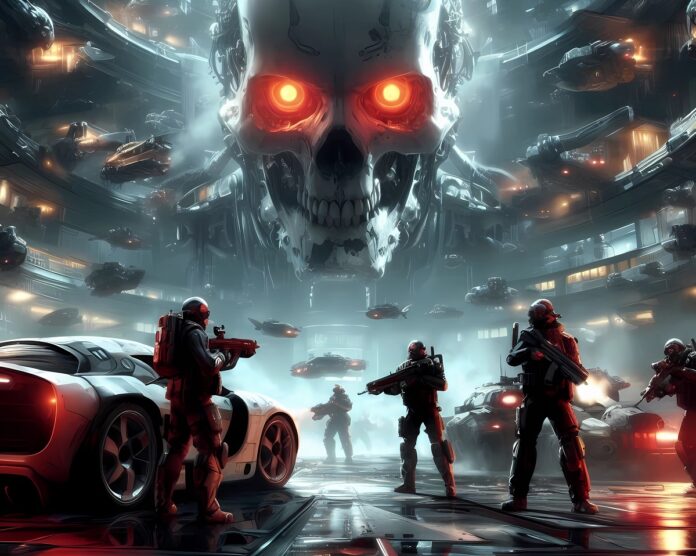
The Division Resurgence mobile launched just yesterday, and the excitement around it has been huge. Players jumped in expecting smooth missions and intense firefights, but many quickly found themselves stuck in silence. The no audio glitch has become one of the most talked about problems in the community.
When a game relies heavily on sound cues to guide you through combat, losing audio feels like trying to play basketball with your eyes closed. You can still move, but you lose the rhythm that keeps everything flowing.
Since the game is still extremely new, there has not been an official fix from the developers. That has left players experimenting with different methods to bring the sound back.
Some of these attempts have turned into widely shared suggestions, and while none of them are guaranteed, they have worked for different people in different situations. Think of it like a team trying out different plays until one finally breaks through the defense.
Below are the three most talked about fixes, along with a fix that I found works as well. Each one has been reported by players who claim it solved the issue for them. None of these are confirmed by Ubisoft, but they might be the best options available until an official patch arrives.
4 Ways on How to Fix The Division Resurgence No Sound Issue
Fix One: Reinstalling the Game and Downloading All Resources
The first fix people are talking about involves deleting the game and reinstalling it. According to players sharing their experiences on YouTube, this method has helped some users restore audio. The idea is that something in the initial installation might not load correctly, and a fresh install gives the game a clean start. It is similar to resetting a playbook when your team keeps running into the same defensive wall.
After reinstalling, the key step is to allow all resources to download before you start playing. When you open the game, you will see a download icon, it’s that orange arrow pointing down.
Tapping it and selecting Download all ensures that every asset loads properly. Some players say that waiting in the tutorial while everything downloads helps the game settle in before you move forward. It is like letting a new pair of shoes break in before running full speed.
Once the resources finish downloading, restart the game. Some players report that the audio returns immediately after doing this. Others say the issue remained, which shows that this fix is hit or miss. Still, it is one of the most widely shared solutions and worth trying if you want to eliminate installation errors as a possible cause.
Fix Two: Using the Help Icon to Return to the Main Screen
Another fix that has gained attention involves tapping the help icon inside the game. According to players posting quick fix videos, this icon looks like a person wearing a headset.
When you tap it, the game sends you back to the main screen. For some reason, this transition seems to trigger the audio to start working again for certain users. It is almost like calling a timeout in a game to reset your momentum.
Players who have tried this say that the sound begins playing as soon as they return to the main menu. It is not clear why this works, but it might refresh the audio system without fully restarting the app. Sometimes games get stuck in a loop, and forcing a screen change can shake things loose. It is similar to switching sides of the court to regain your rhythm.
This fix is simple and quick. Even if it does not work for everyone, it is easy to test without losing progress or reinstalling anything.
Fix Three: Minimizing the App Instead of Closing It
The third fix involves leaving the game temporarily by minimizing it rather than closing it. According to players who shared this method, you need to press your home button or swipe up to return to your home screen.
The key is to avoid fully closing the app. When you reopen it, some users say the sound suddenly returns. It is like stepping off the court for a quick breather and then jumping back in refreshed.
However, this method only works if you do not have no background processes enabled in your developer options. If that setting is turned on, the game will shut down completely when you minimize it.
That would prevent the fix from working because the whole point is to keep the game running in the background. It is similar to keeping your warmup going so you do not lose your momentum.
Players who have had success with this method say it is one of the fastest ways to restore audio. It does not require reinstalling anything or navigating menus. Just a quick minimize and return.
Still, like the other fixes, it does not work for everyone, but it is worth trying since it takes only a few seconds.
Fix Four: Starting and Canceling a Screen Recording
The fourth fix is the most unusual. This is the fix I discovered, so I can personally confirm it worked, in my case at least.
For this, you need a screen recording tool. This can be a built in recorder like the one on Samsung devices, or a third party app.
Once you start the game, open your screen recording overlay and press record. Then immediately cancel the recording before it starts. For some reason, this action causes the audio to activate.
This method sounds strange, but it’s what I’ve been doing to get the sound working every time.
Something about triggering the recording system seems to wake up the game’s audio. It might force the phone to reinitialize sound channels, which then allows the game to output audio correctly.
This fix does not require reinstalling the game or adjusting settings. It just takes a quick tap and cancel. It worked for me.
The Division Resurgence has only been out for a few hours, and the developers have not publicly acknowledged the no sound glitch yet.
According to community discussions, players are hoping that Ubisoft will address the issue soon. Since the game is brand new, it is common for unexpected bugs to appear, and audio problems are often among the first to be patched.
It is like the early minutes of a game when both teams are still settling in and adjusting their strategies.
Until an official fix arrives, these player reported methods, and my solution are probably the best options available.
They may not work for everyone, but they offer a chance to restore audio without waiting for a patch. Think of them as temporary plays you run while waiting for the coach to draw up a long term solution.
With the game gaining attention quickly, it is likely that an update will roll out soon. Hopefully, the developers will release a fix that eliminates the issue entirely so players can enjoy the full experience with all the sound cues that make the action feel alive.
Explore Related Articles
How NTE: Neverness to Everness Cured Depression For One Gamer
There's a moment in every gamer's life when they download a game without much expectation, only to find something that shifts something deep inside them. For one reddit user who claims to be, a female college student who has battled depression for most of her life, that moment came...
3 Quick Steps to Become a Crab Fisherman in BitLife Life...
Are you looking for a career change in BitLife? Have you ever thought about becoming a crab fisherman? Crab fishing can be a rewarding and lucrative job, and it is easy to get started in BitLife. To become a crab fisherman in BitLife, you need to complete certain steps....

What Will Beachfront City in NBA 2k24 MyCareer Look Like? New...
If you are a fan of the NBA 2K series, you might be excited to hear that the next installment, NBA 2K24, could feature a brand new setting for the MyCareer mode. According to a leak from 2K Intel's twitter page, on the Next-gen consoles PS5 and Xbox One,...